
Call4 min read
Have a live conversation
Speak naturally with an assistant, with optional camera and screen sharing where your plan supports them.
Use it for
- Practise a conversation or interview
- Talk through an idea while your hands are busy
- Get help understanding something you show on camera
Inside the app Enlarge
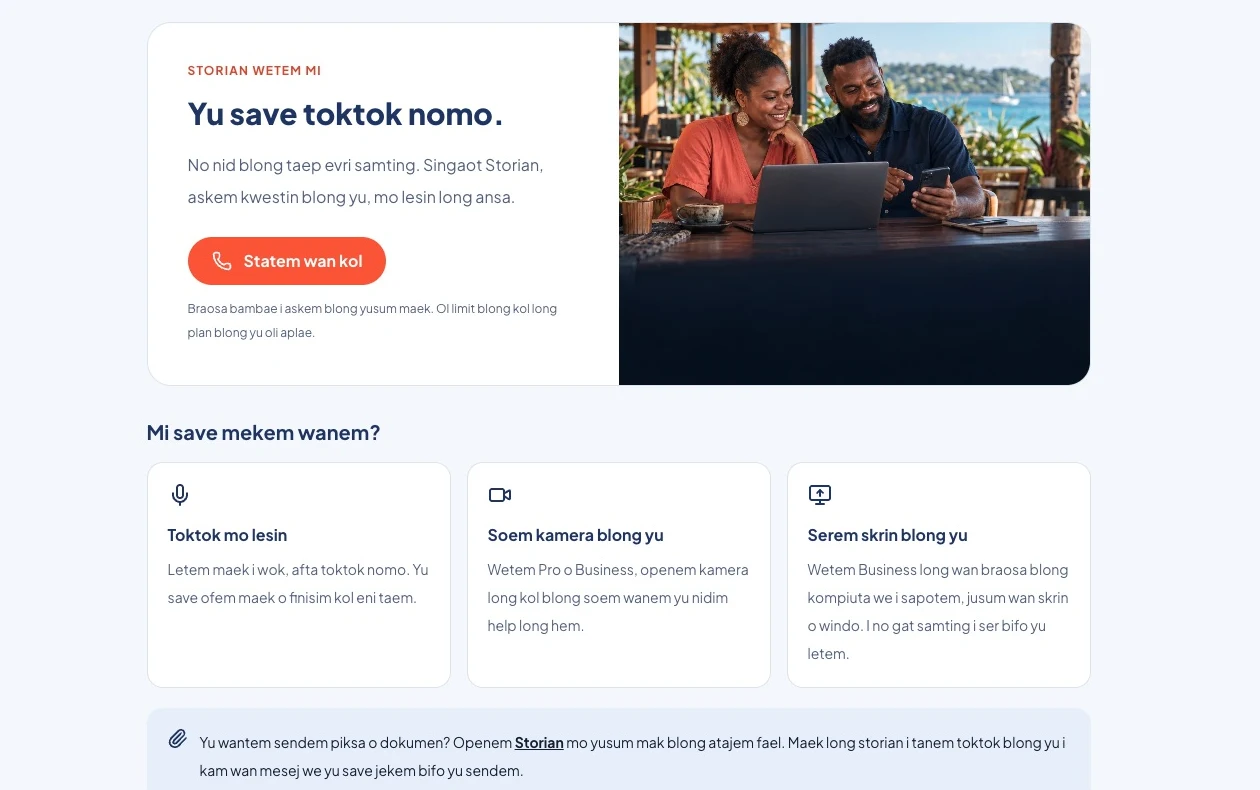
- 1Start a call: choose an assistant
- 2Microphone: mute or speak
- 3End call: finish the session
How to use it
- 1
Choose your assistant
Open Call or press the call button in the workspace. Choose an available assistant and review the call options.
- 2
Allow your microphone
Start when you are ready. Give the browser microphone permission, use headphones if possible, and speak clearly in a quiet place.
- 3
Use optional sharing
Camera sharing requires Pro or Business. Desktop screen sharing requires Business and a supported browser. Only share the window or camera view you intend to show.
- 4
End and keep what you need
Press End call when finished. Available voices, call options and sharing depend on the product and your plan.
Good to know
- Check the assistant picker for currently available voices. A local text language does not guarantee that a matching native call voice is available.
- Chat dictation and a live call are different: a call replies aloud as a conversation.
- Call minutes are metered. Check your allowance and end the call when finished.
- If permission was blocked, use the browser’s site settings to allow the microphone, then retry.
- Share only what you intend. Stop camera or screen sharing before opening private material.