
Ask, write and improve
Turn an idea into a useful answer, letter, plan or explanation. Keep refining until it fits.
Use it for
- Write a customer message or formal letter
- Make a business plan or weekly schedule
- Learn a topic with simple examples
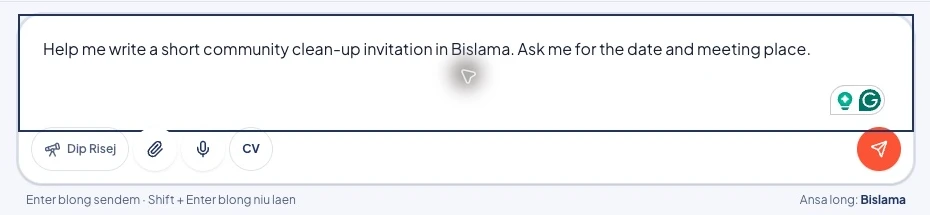
- 1Message box: describe the task
- 2Microphone: dictate a message to review
- 3New: start a separate conversation
How to use it
- 1
Describe what you want
Open Chat and type your request. Include useful details such as the reader, purpose, length and language.
- 2
Send or dictate
Use the send arrow. The microphone turns speech into a draft message; check it before sending. On desktop, Enter sends when enabled; Shift + Enter adds a line.
- 3
Make it yours
Ask follow-up questions such as ‘make it shorter’, ‘use simpler words’ or ‘add a checklist’. You do not need to repeat everything.
- 4
Keep the useful result
Use the reply’s copy, document-download or save controls. Saved work is separate from the conversation in chat history.
- 5
Return to a conversation or share it
Open Chat history to search, reopen or rename a saved conversation. Share creates a link to a snapshot of a conversation; review everything included before sharing the link. People with the link can view the shared content.
Try a request like this
“Write a polite Ewe message to a customer explaining that their order will arrive tomorrow. Keep it under five sentences.”
Adapt the names, dates and details before sending. Example requests do not run automatically.
Good to know
- Use one chat for one subject, and New when you change subjects.
- AI can make mistakes. Check names, dates, amounts and important facts before using a reply.
- A microphone message is different from a live Call: you can review the dictated text first.